How to Apply Film Grain to 40 Photos at Once
Give a whole batch a film look in seconds. Learn how to apply the same grain effect to 40 photos at once, tune the intensity, and keep every export consistent.
Film grain is the most forgiving effect in photography. It hides noise, adds warmth, kills that “digital” look, and — crucially — it makes a batch of photos feel like they were shot on the same roll of film.
The catch is that grain is usually a one-photo-at-a-time effect. Open a preset, apply, export, repeat forty times. DelightfulBorders is built around batch workflows, so applying grain to 40 photos at once is just a few taps. Here’s the exact flow.
Why apply grain to a whole batch?
Three reasons grain belongs in a batch workflow:
- Cohesion. Grain is a texture. When every photo in a set carries the same grain, the set reads as one body of work — a roll, a shoot, a story.
- Noise disguise. Grain adds high-frequency detail everywhere, so compression artifacts and low-light noise stop standing out.
- Consistency at scale. Apply one setting to all 40 images and they share the same grain character. Hand-tuning each one would produce 40 different grains.
How to apply grain to 40 photos at once
Step 1 — Smart Import the whole camera roll
Open DelightfulBorders and use Smart Import. Instead of tapping through your library, pull in the entire camera roll at once — importing works the same whether the photos live in Photos or Files.
Smart Import auto-groups your photos by aspect ratio (4:3, 3:4, 3:2, 1:1, and more), so the set is tidy right away. Then filter and select exactly the photos you want — in this case, the 40 landscape shots you’re turning into one grainy set. Prefixed groups keep the batch organized before you start editing.
Step 2 — Turn on the grain effect
Open the Effects panel. DelightfulBorders ships 17 GPU shader effects, and grain is one of them. Toggle Grain on, then use its independent 0–100% intensity slider to dial in the amount you want.
Because each effect has its own toggle and intensity, you can leave everything else off and make grain the only change.
Step 3 — Sync the grain across the batch
This is the part that used to take forty separate edits. With Batch Processing, the grain style you just set applies to the whole batch at once — and Sync copies your settings across every selected photo with one tap. Sync can even be isolated to just effects, so you push grain everywhere while leaving each photo’s framing and crop intact.
Preview changes across the batch in real time and check a few of the 40 frames to confirm the grain amount reads the same on each.
Step 4 — Export the set
Export the entire batch to the native multi-image share sheet at once. Every image comes out with the identical grain signature, ready to drop into Instagram, TikTok, or wherever else.
Tuning grain intensity
Intensity is a taste slider, but these ranges are a good map:
| Intensity | Effect | Use it for |
|---|---|---|
| 10–20% | Subtle texture | Professional, editorial — grain you barely notice |
| 20–40% | Classic film | Lifestyle, travel, “shot on film” vibes |
| 40–60% | Heavy grain | Lo-fi, vintage, high-ISO look |
| 60%+ | Extreme | Strong art direction — not for client work |
A good starting point for most batches is around 25–30%. It’s clearly filmic but won’t swallow fine detail in faces or architecture.
Grain + other effects for a film look
Grain plays well with other effects, and you can layer as many as you like — each with its own toggle and 0–100% intensity:
- Grain + dither — a dot-screen texture that reads as printed media.
- Grain + chromatic aberration — tiny color fringing that feels like an old lens.
- Grain + halftone — comic-print, high-contrast statements.
- Grain + vignette — a classic, moody frame.
- Grain + gitch, ASCII, or pixelate — whatever your set needs.
The trick is subtlety: pick one effect to be the star and keep the others at low intensity, or the batch starts to feel noisy rather than cohesive.
Keep it consistent next time
Two things keep a batch’s grain uniform:
- One effect setting for all photos. Sync pushes the same grain across the batch, so the set never fragments.
- A saved profile. DelightfulBorders lets you save any combination of settings as a profile. Save your grainy look once, then apply it to future batches with one tap — next month’s shoot can match this month’s exactly.
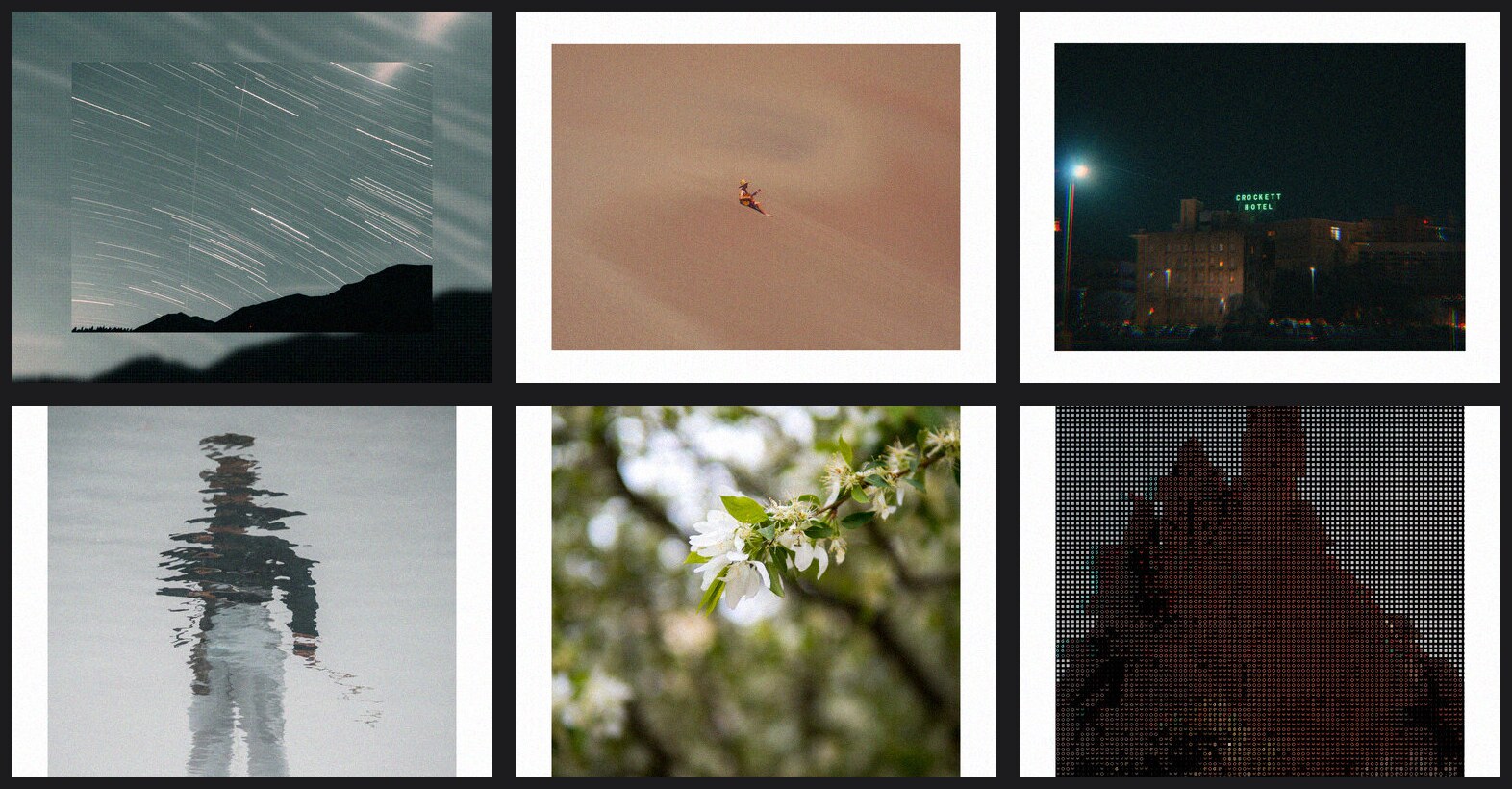
Build the film look at scale
A 40-photo batch with consistent grain reads as one shoot — exactly what clients and followers respond to.
Keep exploring:
- Photo effects explained: grain, glitch, halftone & more
- Photo textures guide: film grain, paper, linen & more
- All photo effect guides
- See every DelightfulBorders feature
DelightfulBorders is a one-time purchase on the App Store. Apply film grain to 40 photos in the time it used to take for one.
Try it with your next batch
DelightfulBorders adds borders, textures, and effects to dozens of photos at once. One-time purchase, no subscription, and everything stays on your device.