How to Add Borders to Photos: White, Colored & Polaroid
A complete guide to adding borders to photos — white mats, colored borders, polaroid frames, and aspect-ratio framing — including how to apply them to a whole batch.
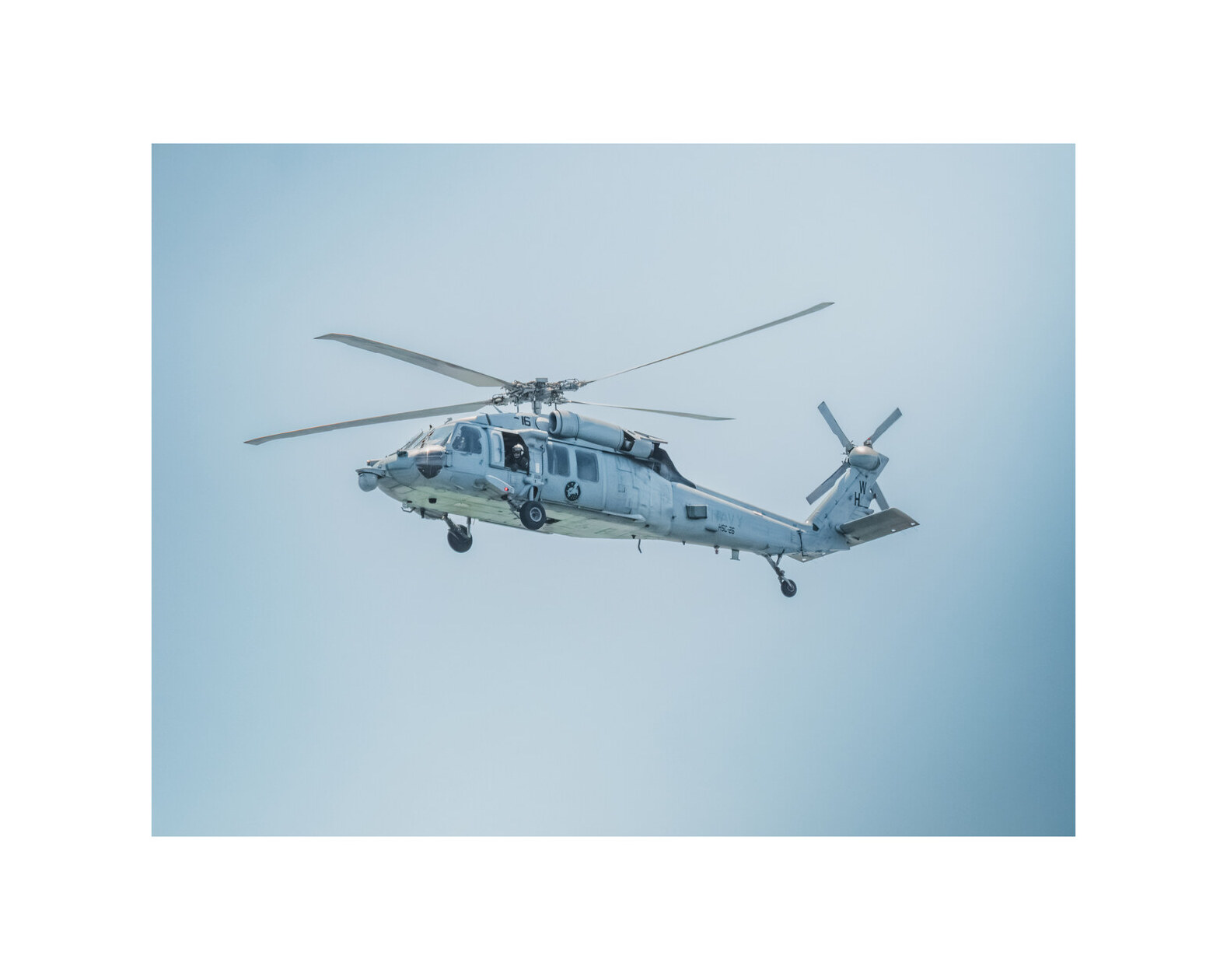
Photo borders are the cheapest way to change how an image feels. A white mat says gallery. A black border says editorial. A polaroid frame says memory. You can change the entire mood of a photo without touching the photo itself.
This guide covers every border style you’d realistically want, how to get each one right, and — because nobody has time to border a hundred photos by hand — how to apply them to an entire batch.
The anatomy of a border
Before choosing a style, understand what the border actually is: a background color that shows around your photo inside a chosen frame size. That mental model unlocks every style below:
- Border width = how much background shows.
- Frame aspect ratio = the shape of the final image (square, 4:3, 3:4, 16:9).
- Photo placement = where your photo sits inside the frame (centered, offset, oversized).
Change those three things and you have any border style in existence.
White border (the classic)
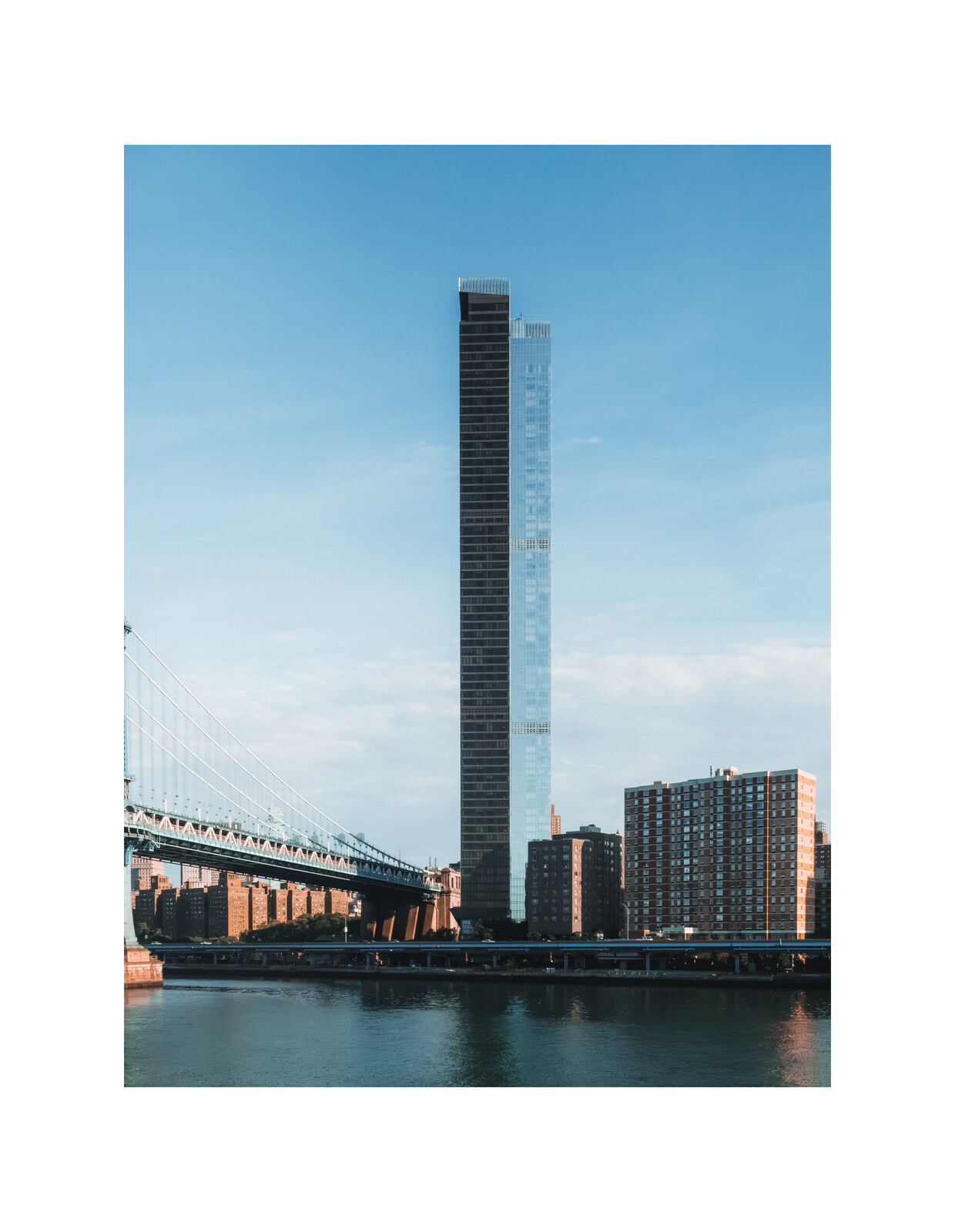
The default for a reason. Pure white (#FFFFFF) around the photo, photo centered. Best at 5–7% of image width.
Best for: portfolios, minimal feeds, product shots, and anywhere you want the image to feel framed rather than cropped.
Follow the batch white border walkthrough for the exact steps, including how wide to go.
Colored border (the accent)
Swap the white background for any color. Three smart approaches:
- Black (
#000000) — moody, editorial, high contrast. Pairs well with heavy grain. - Cream / off-white (
#FFF8F0,#F5F0E6) — warmer than white, reads as vintage paper. - Feed-matched — pick a color that appears in your Instagram grid and let it subtly echo across posts.
Colored borders are one setting in the app, so restyling a whole batch is instant.
Polaroid border (the throwback)
The polaroid look is a wide bottom border — roughly double the width at the bottom than on the other three sides — with the photo sitting above it. It’s the single most recognizable photo border in the world.
How to fake it correctly:
- Set your frame to square or 3:4.
- Push the border wider than you think — the bottom should be noticeably thicker.
- Use white, cream, or the classic slightly-yellowed polaroid white.
The oversized bottom gives the image a “hold this in your hand” weight that a uniform border can’t.
Aspect-ratio borders (the strategic one)
This is the border that does something. By framing a portrait photo inside a square canvas (or a 16:9 inside a 4:3), you get an image that:
- Fits a target platform exactly (square for Instagram, 16:9 for YouTube thumbnails).
- Keeps the subject safe from platform cropping.
- Lines up with other posts in a batch.
This is the technique behind most “consistent Instagram grid” feeds — not a decorative border, a structural one.
Which border should you use?
| Style | Mood | Best for | Difficulty |
|---|---|---|---|
| White mat | Clean, gallery | Portfolios, feeds, prints | Easy |
| Black | Editorial | Art, fashion, moody brands | Easy |
| Cream | Vintage | Film, travel, lifestyle | Easy |
| Polaroid | Nostalgic | Memories, personal, art prints | Medium |
| Aspect-ratio frame | Structural | Social platforms, batch consistency | Medium |
How to apply borders to a whole batch
Bordering photos one at a time defeats the purpose — the whole point is that every image matches. In DelightfulBorders:
- Select every photo you want to border (from Photos, Files, or a shared batch).
- Style once — set the border color, width, and frame ratio. The app holds the same style across the entire batch.
- Export — all bordered photos go to the share sheet together, identical to the pixel.
If you want different borders for different groups, use saved profiles: style group A, save it, style group B, save it, and apply the right profile to the right photos later.
Common border mistakes
- Borders too thin — invisible at thumbnail size. Go bigger than feels right.
- Inconsistent widths — hand-editing. Always batch.
- Wrong frame ratio — a “square” post that isn’t square gets cropped by Instagram. Check 1080×1080.
- Ugly edge color — a slightly off-white on an image with warm highlights looks dirty. Match the border color to the image’s white point.
Pick a style and commit
A border is a signature. The best-looking feeds and portfolios pick one and never waver — which is exactly what batch processing makes easy.
Keep exploring:
DelightfulBorders runs entirely on your device — one-time purchase, no subscription, no account.
Try it with your next batch
DelightfulBorders adds borders, textures, and effects to dozens of photos at once. One-time purchase, no subscription, and everything stays on your device.