Batch Borders
Everything about adding borders to photos in bulk: white borders, colored mats, polaroid frames, aspect-ratio framing, and how to apply one style to an entire batch so every export looks intentional.
Guides in this topic
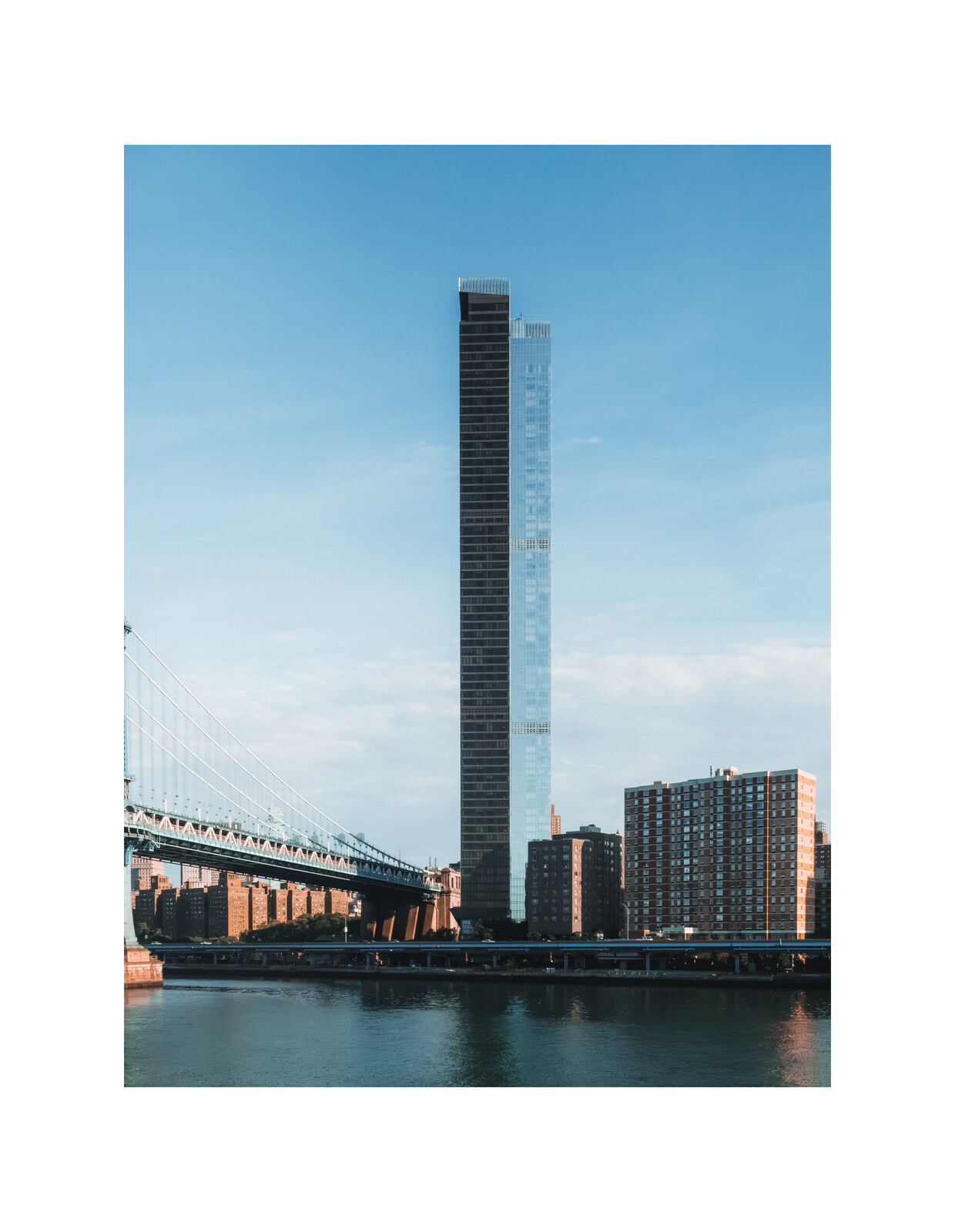 Batch Borders
 How to Batch Add White Borders to Photos
Add a white border to hundreds of photos in seconds. Learn how to batch-add uniform white borders, pick the right border width, and export everything at once.
Read guide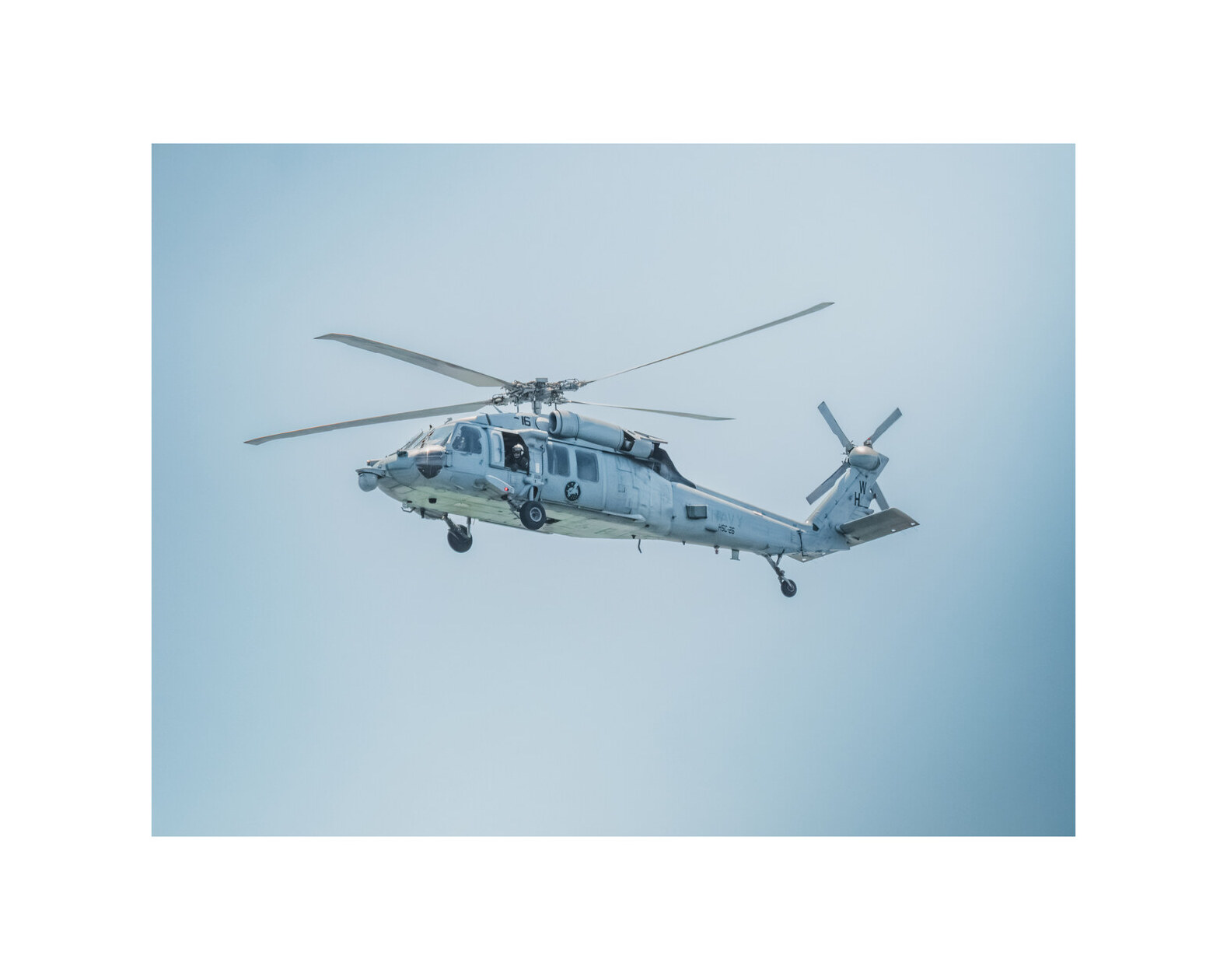 Batch Borders
 How to Add Borders to Photos: White, Colored & Polaroid
A complete guide to adding borders to photos — white mats, colored borders, polaroid frames, and aspect-ratio framing — including how to apply them to a whole batch.
Read guideFrequently asked questions
What is the best way to add white borders to many photos at once?
Use a batch photo editor. Import all the photos, set a solid white background and your frame ratio once, then export the whole batch together. Every image gets the identical border automatically — no per-photo editing.
How wide should a white photo border be?
A standard white mat is about 5–7% of the image width. Thin 2–3% borders are subtle for galleries, while 10–15% gives a polaroid or heavily framed look. Pick one width and apply it to the whole batch for consistency.
Can I add different borders to different photos in one batch?
Yes. Save each border style as a profile, then apply the right profile to the right group of photos. Each group still gets a uniform border, so nothing is edited by hand.
Will a border prevent Instagram from cropping my photo?
A square border on a non-square photo keeps the subject inside a square-safe area, so Instagram thumbnails won't crop the photo itself. This is the classic trick behind consistent grids.
Explore more topics
Put these workflows to work
DelightfulBorders applies borders, textures, and effects to dozens of photos at once — on your device, one-time purchase, no subscription.