Photographer Workflows: How to Batch-Border a Full Session
Stop spending hours on post-processing. Learn photographer workflows for batch-bordering entire sessions, keeping galleries consistent, and prepping prints with saved presets.
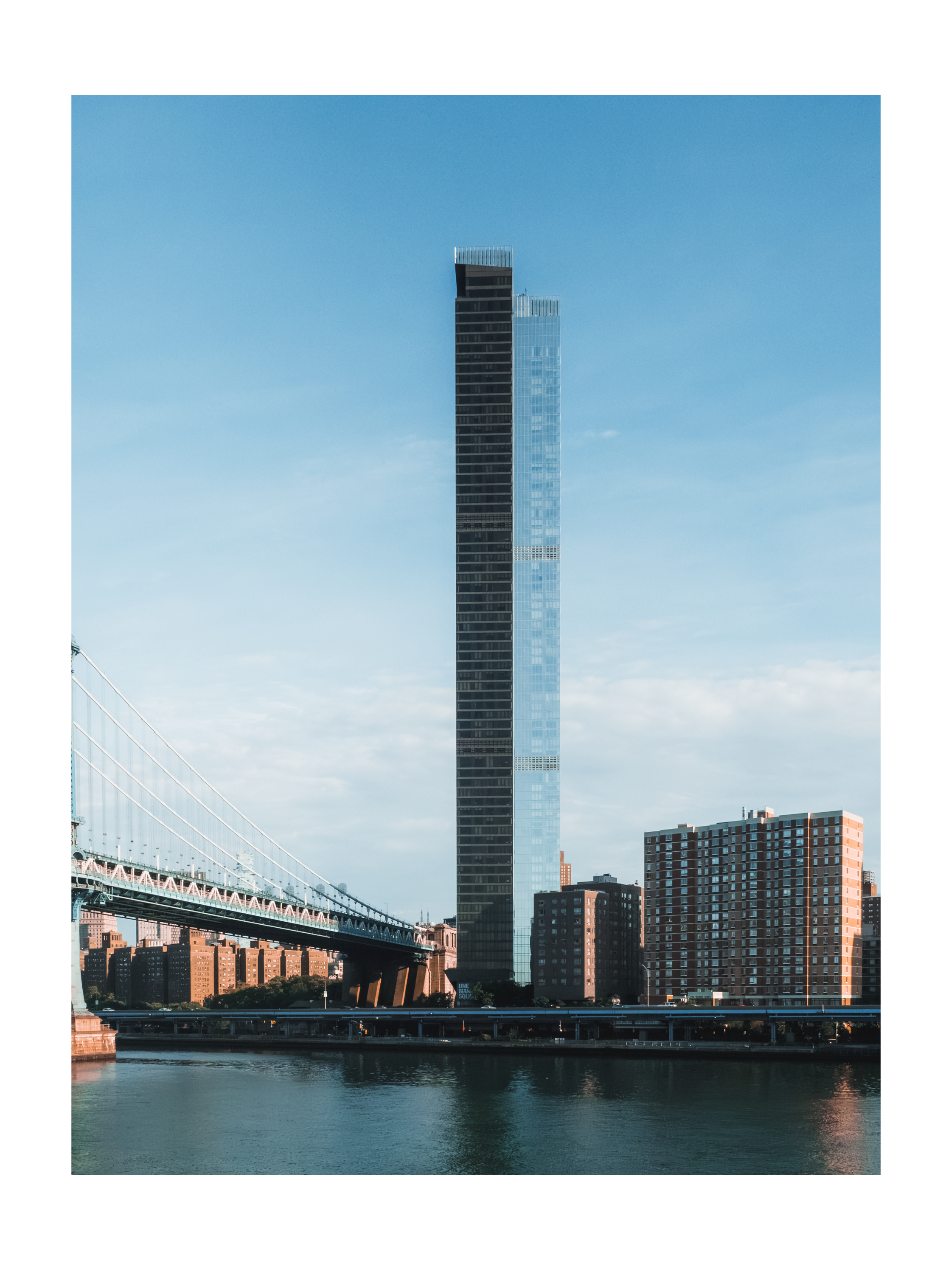
The time you spend post-processing is time you don’t spend shooting, marketing, or delivering. And the most common post-processing time-sink is doing repetitive styling work — borders, textures, frames — one photo at a time.
A photographer’s editing flow should be boring. Select, apply, export, repeat. This workflow guide shows how to border an entire session, keep a gallery consistent, and prep prints without the manual grind.
Why photographers need batch workflows
A typical session is 300–800 frames. Say 100 make the cut. If each one needs a border, a texture, and a final export, that’s 100 tiny repetitive tasks — each one identical, each one stealing minutes. Multiply by sessions per month and it’s days.
Batch processing compresses that into three decisions:
- Which photos? (select the set)
- What style? (borders, textures, effects, ratio)
- How do they leave? (export tier + destination)
Everything else should be automatic.
The session workflow
Step 1 — Cull, then import the keepers
Do your culling first. Import only the selects from the session — 50–150 images depending on the shoot — from your photo library or Files. The app handles dozens at a time, so import the whole keep set at once.
Step 2 — Build the client look once
Set the framing once:
- Border — white mat for a clean gallery, or a custom color to match the brand. How to pick →
- Texture — a fine paper or linen texture for a print feel. Texture guide →
- Aspect ratio — square for social deliverables, 3:2 or 4:3 for print, whatever your client’s gallery uses.
Because the style is set once, every photo in the session gets the identical treatment.
Step 3 — Save it as a profile
This is the workflow multiplier. Save the full look — border, texture, ratio — as a named profile. Next session, apply it with one tap. Your clients get a consistent style shoot after shoot, which is how you become “the photographer with the recognizable look.”
Step 4 — Export per deliverable
Export the session at the right quality tier for the job:
- Client web gallery → medium resolution.
- Print-ready or full-resolution delivery → full resolution.
- Preview selects → low resolution.
One export hands the whole set to the share sheet, uniformly styled.
Keeping a gallery consistent
Consistency is what separates a professional gallery from a random album. Three habits:
- One style per session. Every image in a deliverable should share the same borders and textures. Mixing styles mid-gallery reads as indecision.
- One saved profile per client type. Wedding, corporate, family, editorial — each gets its own profile, so next year’s session matches last year’s.
- Batch-export everything. If 50 files have 50 different sizes, the gallery looks broken. Uniform export is non-negotiable.
Print prep without the math
Print clients need specific resolutions, but you shouldn’t have to think about DPI per file. With full-resolution batch export, every image leaves at native quality — large enough for most print sizes. Combined with full-resolution export and a square-or-print frame, the entire session is print-ready in one pass.
The workflow cheat sheet
| Task | Old way | Batch way |
|---|---|---|
| Border 100 session photos | 100× manual | Select → style once → export |
| Keep galleries consistent | Re-edit every shoot | Saved profile, apply in one tap |
| Social deliverables | Resize every file | Medium export, whole batch |
| Print delivery | Recheck DPI per file | Full-res export, once |
Build the habit
The best workflow is the one you don’t think about. Set up your profile once, then every session is: import, apply, export, invoice.
Keep reading:
DelightfulBorders is a one-time purchase — no subscription, no account, everything on your device.
Try it with your next batch
DelightfulBorders adds borders, textures, and effects to dozens of photos at once. One-time purchase, no subscription, and everything stays on your device.